
How to Repurpose Webinar Recordings for YouTube

Turn one webinar into six YouTube assets with real time budgets: a tutorial, three clips, a chaptered recording, and an FAQ article.

On this page
#The recording is not the asset
A company runs a good webinar. Forty people attend, three ask real questions, and someone uploads the recording to YouTube with a new thumbnail. Six weeks later it has ninety-one views, forty of which are the team checking that the link works. That is what happens when teams repurpose webinar recordings by changing the thumbnail.
The problem is not the webinar. It is the assumption that repurposing means changing the packaging. To repurpose webinar recordings for YouTube, you have to do the work a video needs: pick one question per asset, cut to the answer, name the chapters, and give every clip its own reason to exist.
That is more work than changing a thumbnail. It is also the difference between a library and a folder of long recordings. Here is the workflow we use, with honest time budgets and six assets from one session.
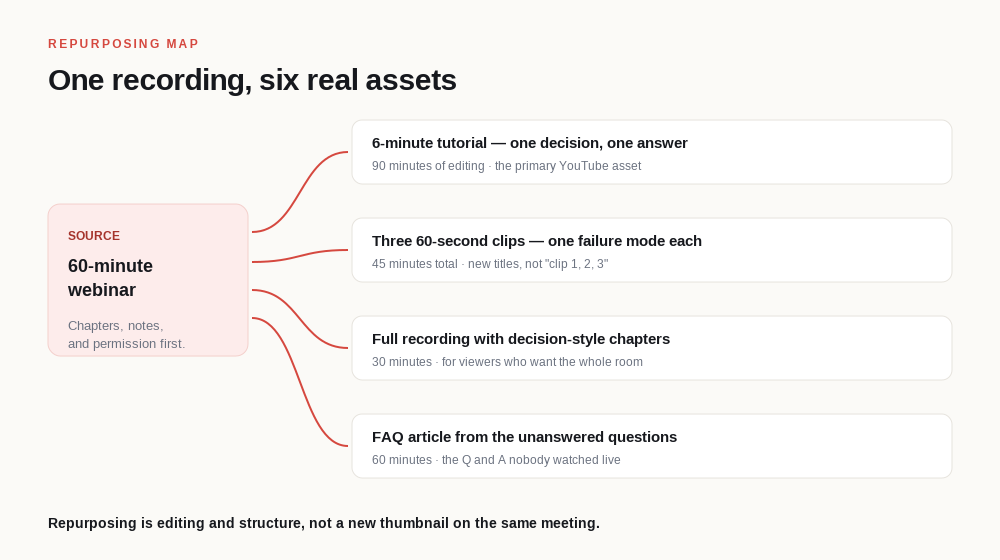
Editing and structure, not a new font. Each output answers a different question.
#Before you repurpose webinar recordings
Four things make the rest of the work possible:
- Permission. Confirm you can publish the recording and the speaker's image. If a customer appears, get their approval in writing. Our disclosure explains how we handle this.
- A clean transcript. Correct product names, acronyms, and numbers before you use the transcript to find segments. Auto-captions are a draft, not a source of truth. YouTube's captions help covers editing them.
- The chat log and Q and A. The questions people asked while the recording was live are often better video topics than the planned slides.
- One sentence about the viewer. "An operations lead who needs to choose between two implementation approaches." If you cannot write it, the cuts will be arbitrary.
Then watch the recording once with a notebook. Write down the exact timestamps where someone answers a question completely. Those are your candidate assets. Everything else is context.
#The six assets
| Asset | Time budget | Job |
|---|---|---|
| Six-minute tutorial | 90 minutes | Answer one question end to end |
| Three one-minute clips | 45 minutes total | Show one failure mode each |
| Full recording with chapters | 30 minutes | Serve the people who wanted the whole room |
| FAQ article | 60 minutes | Capture the questions nobody watched live |
When you repurpose webinar recordings, that is roughly four hours of work from a 60-minute session. If the team cannot resource that, repurpose less. One good tutorial beats six lazy clips.
#1. The six-minute tutorial
Pick the segment where the speaker answers a complete question with a clear beginning and end. Build the video around that answer: name the viewer and the question in the first thirty seconds, show the steps or the comparison, then stop. Do not add "and here's some background" at the front. Background belongs after the answer, if it belongs at all.
Use a new title written for search, not for the webinar. "Two approval workflows, compared honestly" beats "Q3 webinar: approval workflows." Our YouTube SEO guide covers title patterns and chapter labels.
#2. Three clips with their own titles
A clip is not a smaller copy of the tutorial. Each one should isolate a single moment that stands alone: the failure mode nobody mentions, the unexpected answer, the step people get wrong.
Give each clip its own title, description, and thumbnail. Three clips labeled "clip one, two, three" are a playlist nobody finishes. Three clips called "What breaks in an approval migration," "The exception path everybody forgets," and "When not to automate approvals" are three answers.
Keep them short enough to finish and long enough to prove something. Sixty to ninety seconds is usually enough. Add a line at the end pointing to the full tutorial, not a call to book a demo. The viewer has not decided anything yet.
#3. The full recording, with chapters
Some viewers want the whole session. Keep it, but make it navigable. Add chapters at the moments where a new question begins, and label them as decisions rather than sections. YouTube's video chapters help documents the timestamp format.
For example, "00:00 Who this is for," "06:20 The two approaches," "19:45 What breaks," and "38:10 Questions from the room" are more useful than "Introduction," "Presentation," and "Q and A." A viewer who only needs the failure modes can jump there in one click.
#4. The FAQ article
Read the chat log and the Q and A. Group the questions, discard the ones the speaker answered badly, and write short answers to the rest. Link each answer to the timestamp in the full recording or the relevant clip.
This is the cheapest asset in the set and the one teams skip most. It is also the one that captures the questions nobody stayed to hear. If you use the Q and A as the source of a new video later, you already have a brief — our brief guide shows the one-page format.
#Sequence the work, not the uploads
If you repurpose webinar recordings into six assets, do not publish them all in one week. They compete with each other for the same audience, and a viewer who sees the tutorial, three clips, and the full recording in one feed will remember none of them.
A reasonable sequence for a small team:
| Week | Publish | Why |
|---|---|---|
| 1 | The six-minute tutorial | The clearest answer, highest chance of a signal |
| 2 | Two clips | Test which failure mode gets a response |
| 3 | The FAQ article and the third clip | Serve the long-tail questions |
| 4 | The chaptered full recording | For viewers who want depth after trust is established |
Use the 48-hour and 28-day reads from our analytics guide to decide which clips deserve a follow-up. If a failure-mode clip outperforms the tutorial, that is a content signal worth taking seriously. Build the next content calendar around it.
#Five things that go wrong
Publishing the recording first. It becomes the canonical version and the clips look like leftovers. Publish the tutorial first.
Clips without new titles. A clip inherits none of the parent's context. It must make sense on its own.
Cutting before reading the chat. The best segment is often an answer to an unplanned question, and it is not in the slides.
Keeping every minute. A long recording with chapters is a reference asset. It is not your main answer. If you only have time for one thing, make the tutorial.
No owner for the set. Six assets with nobody accountable for their review become six things nobody refreshes. One name, one review date.
#FAQ
#How many videos should one webinar become?
Four to six assets is a reasonable ceiling for a 60-minute session: one tutorial, a few clips, the chaptered recording, and an FAQ article. More than that usually means the same answer is being repackaged under different titles, which annoys the audience and splits the signal.
#Should I publish the full webinar on YouTube?
Yes, as a reference asset with decision-style chapters. Publish it after the shorter pieces have established which questions matter. A full recording is useful to someone who already trusts you and wants depth; it is a poor first impression for someone who does not.
#How long should a webinar clip be?
Long enough to prove one point, usually 60 to 90 seconds. If the clip needs a setup paragraph to make sense, it is not a clip. It is a tutorial that has not been edited.
#Do I need permission to repurpose a customer webinar?
Yes. Confirm you can publish the recording, the speaker's image, and any customer names or logos. Get written approval before the video goes live, and keep the record with the brief. This is a requirement, not a courtesy.
#What if the webinar was not very good?
Then the cuts may still be. A session can fail as a live event and contain three excellent answers. Read the transcript and the chat before you decide. If there is no complete answer anywhere in the recording, republish nothing and treat it as research for the next session.
Repurposing webinar recordings is not a trick for getting more posts out of one meeting. It is the discipline of finding the six questions a webinar actually answered and giving each one a home. Do that and the recording stops being a file and starts being a library.
Sources
- YouTube Help: Add subtitles and captions
Explains how to correct auto-generated captions before using a transcript as a source.
- YouTube Help: Video chapters
Documents the timestamp format and rules for chapters on the full recording.
- YouTube Analytics API: reports.query
Documents the authorized metrics used in the 48-hour and 28-day reads.
Written and reviewed by Jean Cope for the ChannelWhisper editorial team. We may mention our own product in articles. Read our research method, disclosure, and corrections policy.
Ready to turn research into pipeline?
ChannelWhisper monitors competitor channels and generates ready-to-record briefs.
Keep reading
AI Content Checklist: 12 Checks Before You Publish
A printable AI content checklist of twelve checks in four groups, with a one-minute test and a definition of good for each one.
How to Refresh Old Content Without Rewriting It
A decision tree for old pages: keep, update, merge, rewrite in place, or retire — with the history and URLs worth preserving.
Topic Clusters for Small Content Teams
A pillar, six supporting articles, one intent per URL: how a two-person team builds topic clusters that actually get published.